

Complete Step-by-Step Guide to Set Up TiviMate on Firestick:
Streaming live TV through IPTV has become one of the most popular ways to cut the cord, and Amazon’s Fire TV Stick is one of the easiest devices to set it up on. Whether you’re switching from cable or just adding more channels to your setup, this guide walks you through the entire process — from prepping your Firestick to troubleshooting playback issues.
IN THIS GUIDE
Step 1: Install the Downloader App
-
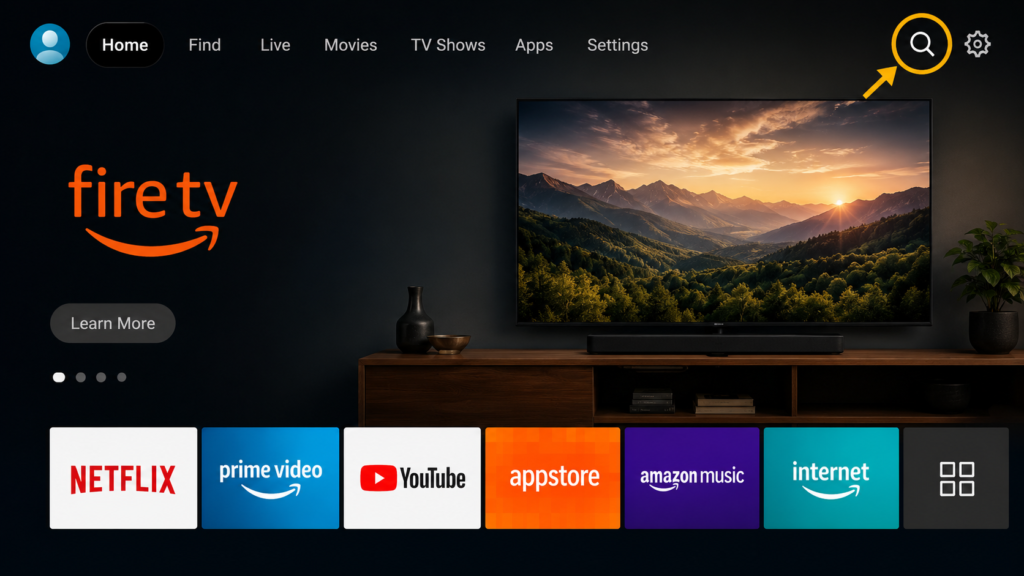
Turn on Firestick and Open the Search Option
Start your Amazon Firestick and go to the home screen.
Select the Search icon from the menu.
-
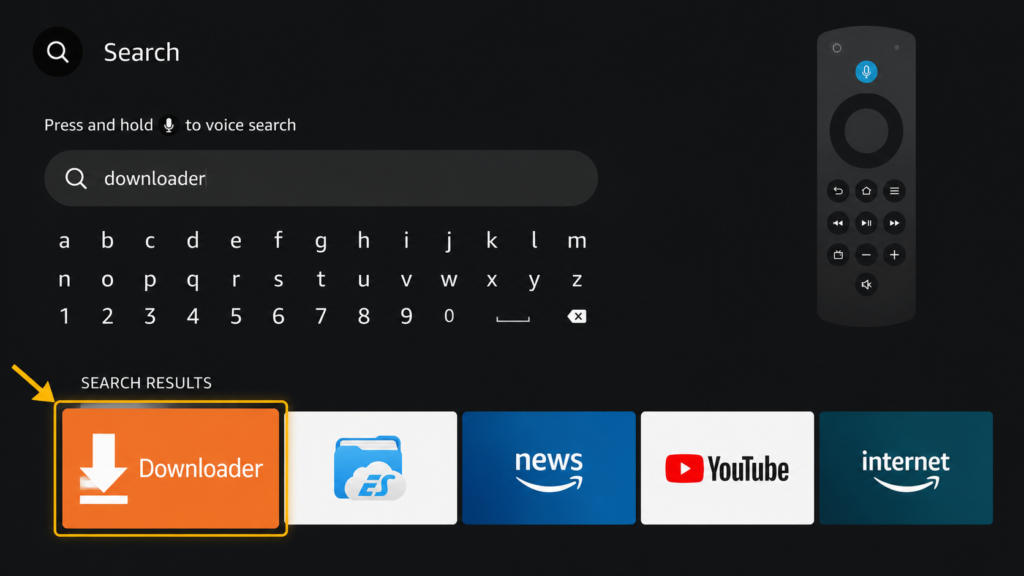
Search For Downloader
Using the Firestick search feature, type: Downloader
Select the Downloader app from the search results.
-
Download and Install Downloader
Select the Downloader application and choose Download or Get.
Wait for the installation to finish.
Once installed, select Open.

Step 2: Enable Apps from Unknown Sources
-
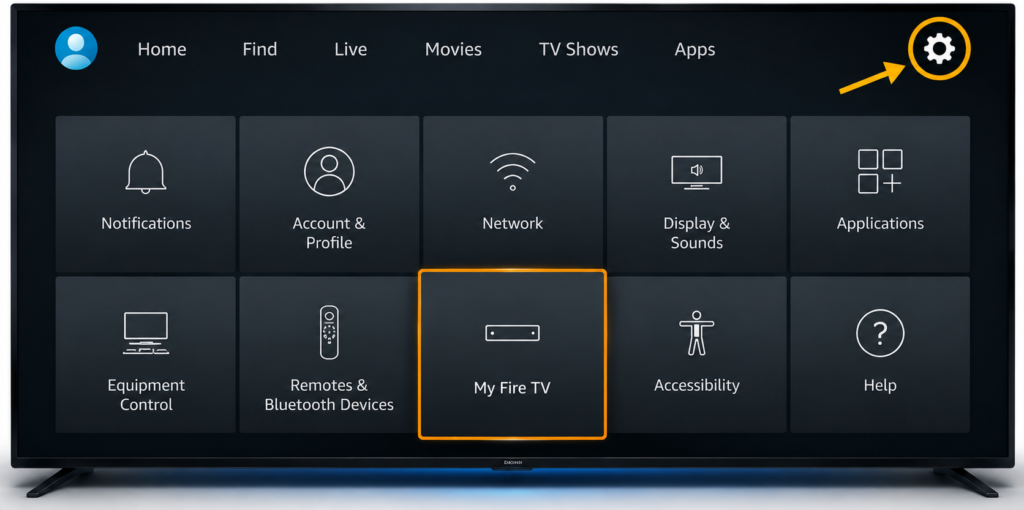
Open Firestick Settings
Return to the Firestick home screen.
Select the Settings icon.
Then open: My Fire TV
-
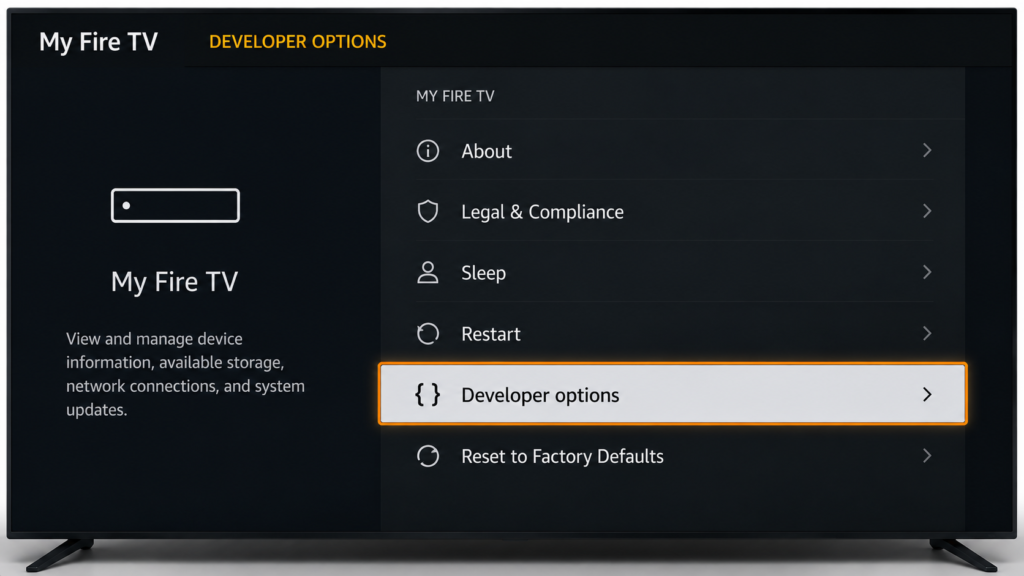
Open Developers Options
Inside My Fire TV, select:Developer Options
Depending on your Firestick version, this option may appear differently
-
Allow Downloader to Install Apps
Find the option for installing apps from unknown sources.
Select Downloader and turn the permission ON.
This allows Downloader to install an application that is not downloaded directly from the Amazon Appstore.

Step 3: Download the TiviMate in Downloader
-
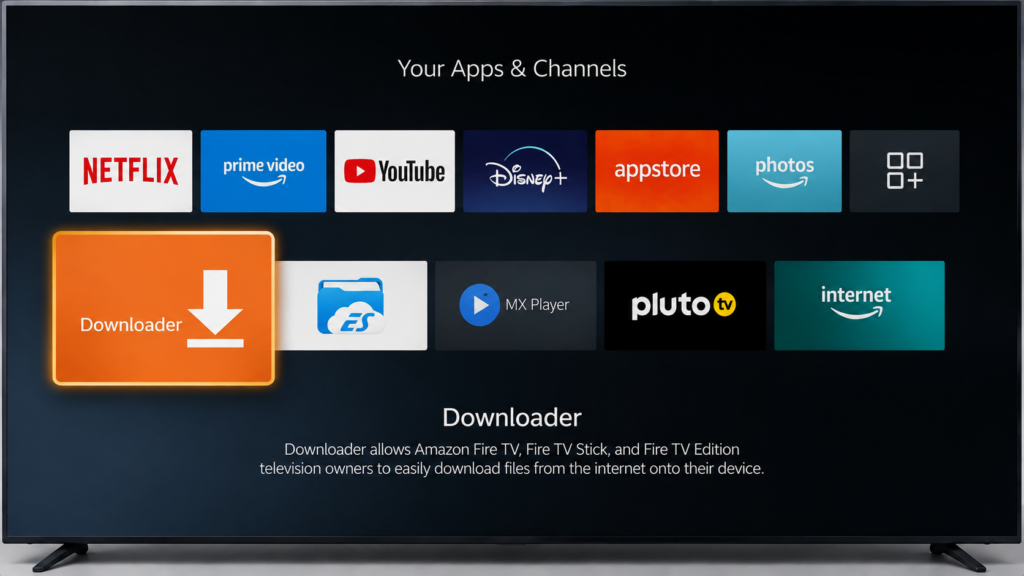
Open the Downloader App
Go back to your Firestick Apps section and open Downloader.
If the app asks for permission to access files or media, select Allow when appropriate.
-
Enter the TiviMate Download Address
On the Downloader home screen, select the URL field.
Enter the download address provided by your IPTV service or the official website of your chosen IPTV player.
For Tivimate Enter 272483
Then select Go.

-
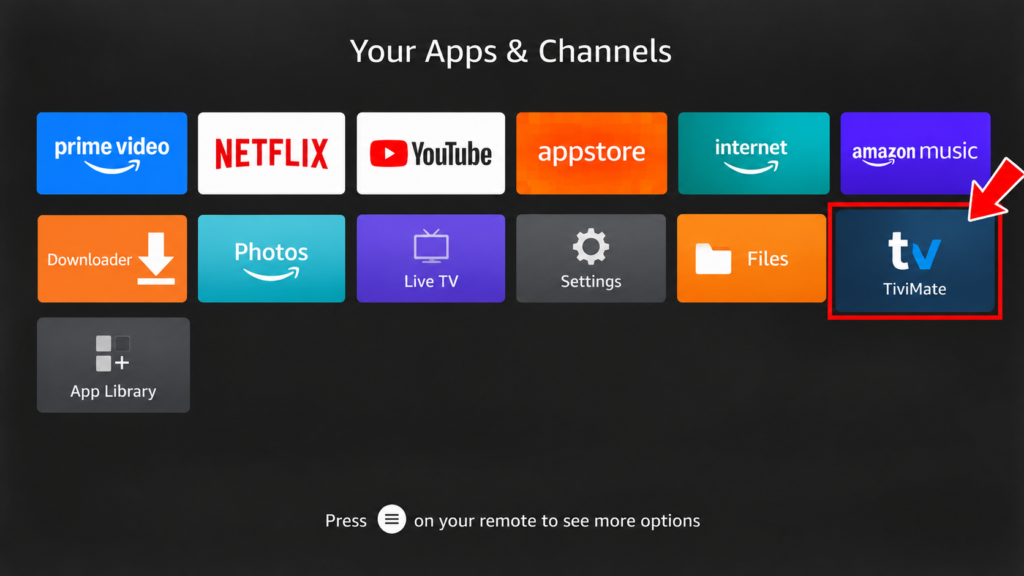
Open the TiviMate Player
Once the installation is complete, select Open.
You can also find the TiviMate later from:
Firestick Home → Apps
Step 4: Subscribe to an IPTV Service
-
Select Your Login Method
When you open the TiviMate player, you may see different login options depending on the application. Choose the method supported by your IPTV service
Select: Login with Xtreme Code API

-
Enter Your IPTV Login Details
Enter the subscription details provided by your IPTV service.
Make sure all information is entered correctly.

-
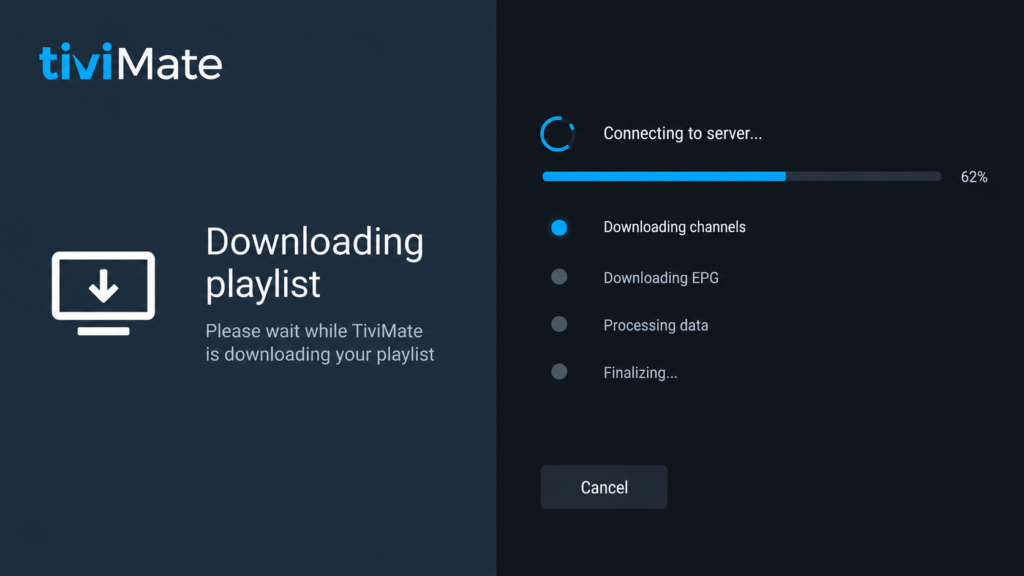
Wait for Your Playlist to Load
Your TiviMate player may take a few minutes to load available content.
The available categories depend on your IPTV subscription.
-
Start Streaming And Enjoy IPTV
Your IPTV setup is now complete.
Choose the category you want to explore and select the content available through your service.
For the best experience, make sure your FireStick has a stable internet connection.
